Services
Managing MobiusFlow Services
MobiusFlow Services are the starting point for any configuration. They are typically device drivers for a specific protocol or provide protocol interfaces such as an MQTT broker.
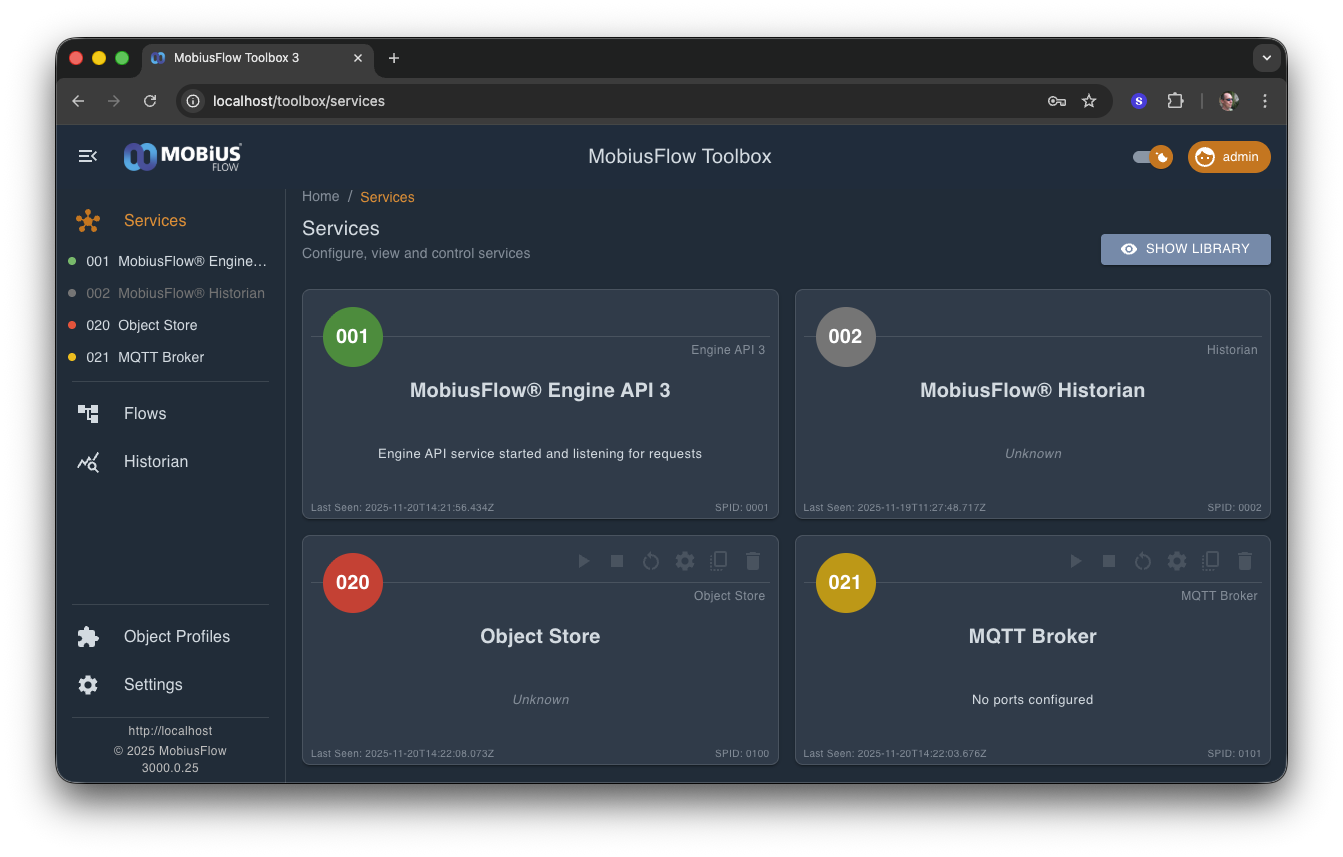
The main services page shows an overview and status of each service that has been added to the configuration. You can interact with services in a number of ways, including configuring a service, starting and stopping a service, or adding and configuring objects belonging to a service.

The main services page shows an overview of all services that have been added to an instance. Each service is represented by a card which provides status information and allows you to interact with the service.
As new services are added cards will appear on this this page. The service list is also visible in the main menu below the Services menu item.
Service Library
The service library is a list of all possible services that can be added to MobiusFlow. You can show and hide the library by clicking on the button in the top left of the page.
For more information on adding services please read the Adding Services article.
Service Cards

Service cards show a lot of information about a service and allow you to interact with a service.
Service ID (SID)
The service ID is a three digit hexadecimal number and is shown in the middle of the coloured service status circle in the top left corner of the card.
Service Name
The service name is shown at the top of the main body of the card. The name can be set in the service settings and defaults to the service type.
Service Status
The service status is shown in two places on the card.
Quick Status Indicator
The coloured circle in the top left corner gives a quick indication of the health of a service. The indicator colours are as follows:
Grey
Service is disabled and cannot be started
Red
Service is enabled but not started
Amber
Service is running but has an error
Green
Service is running an OK
Blue
Service is starting
Detailed Status Information
In addition to the quick status indicator, detailed status information is shown in the main body of the card beneath the service name. If a service is in error, the error is shown here.
Last Seen
At the bottom left of the main body of the card is a timestamp showing the last time a service interacted with the MobiusFlow instance.
Service Type
The service type is shown in the top right corner of the main body of the card.
In addition the internal Service Profile ID (SPID) which also indicates the service type is shown in the bottom right of the main body of the card
Service Toolbar
With the exception of system services, each service card has a toolbar in the top right. Hovering over the card will highlight the toolbar. The six buttons from left to right are:
Start a service that is enabled but stopped
Stop a service that is running
Update a service's objects after a change without stopping the service
Access the service settings dialog
Make a copy of a service including all of its objects and settings
Delete a service and all of its objects
Accessing Service Objects
Accessing the Objects belonging to a service can be done in two ways. You can click on the main body of a service card or click on the service in the main menu.
Last updated
Was this helpful?

